
Hardware Transition Team

After you receive your refresh PC

Overview


Please follow the steps listed below to complete the setup of your new refresh computer.


    • Connect the PC to its charger.
    • Power on new PC.
    • Connect to the internet. 
    • At the Welcome to CPGPLC screen, sign in using your Compass email. 
    • Wait for the machine to reboot several times. 
    • When the Other User screen appears, sign in using your compass email. 
    • Lock the PC (CTRL + ALT + Delete > ‘Lock’) and let it rest for 24 hours to install updates and patches.

Please do not proceed in this guide before completing the steps listed above.

Zscaler

Zscaler is an endpoint-based firewall that must be enabled to allow for the refresh process to proceed. 

Zscaler should be installed automatically 20 minutes – 2 hours after your first sign-in. Sometimes, this service must be enabled manually. To quickly verify if you need to enable Zscaler, select the task tray icon (^) on your taskbar in the bottom right corner of your main display. If the selected icon looks like the one pictured below, no further action is needed.
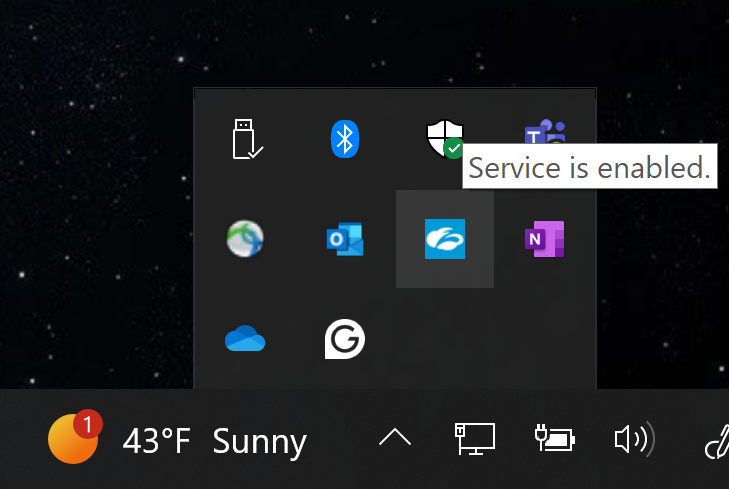
If this icon pictured above is gray, please follow the video or written steps below to sign in.


Import Bookmarks

Microsoft Edge is the only Compass-supported browser that automatically backs up your bookmarks. If you have bookmarks you would like to transfer to your new computer, please follow the links below to learn how to import the previously exported bookmark file. 

Google Chrome Mozilla Firefox

Installing missing software

Please install any Compass-supported software by following the guide below. 

3. To request the installation of Acrobat DC Pro, MS Project Pro, MS Visio Pro, or VMware workstation player, please complete a software request form by following this link, searching for ‘Software’, and selecting the option pictured below: 

2. If the non-supported software you need requires a license, please contact [email protected].

3. For all other free, non-supported applications, please contact the Compass Technology Center at 1-888-295-7206, option 2.

Other

Please contact your assigned refresh technician if you experience any issues with the refresh process. There is no need to delete any data from your old computer prior to its return. All Compass assets have encrypted drives that are wiped upon receival at the leasing company.

Printers – If you need assistance with printer installations please contact the Compass Technology Center @ 1-888-295-7206, option 2.
Need extra assistance?

X